

If you’ve ever wanted to add a QR code to your business card, brochure, or social media profile but weren’t sure how, it’s easier than you might expect. And the best part? You don’t need any technical skills or paid software to do it.
This guide shows you how to create a custom QR code for free using Vecteezy’s QR Code Generator. With it, you can choose exactly what your QR code does, from opening a URL to sharing contact info, sending an email, or triggering a phone call or SMS. You can even personalize your code with your logo and brand colors. By the end, you’ll have a professional, on-brand QR code ready to add wherever you need it.
What Are QR Codes and Why Use Them?
QR codes store significantly more information than traditional barcodes (up to 4,296 alphanumeric characters), making them incredibly versatile.
The practical applications for QR codes are virtually limitless. Restaurants use them to provide contactless menu access. Business professionals add QR codes to their cards, instantly sharing contact information, portfolios, or LinkedIn profiles. Brands integrate them into product packaging to provide user manuals, installation instructions, or promotional content. Event organizers streamline check-ins with QR code tickets, while real estate agents use them on “For Sale” signs to showcase virtual tours.
QR codes provide instant access to information without requiring users to manually type long URLs or search for content. For businesses, QR codes offer trackable engagement metrics when paired with analytics tools. They’re also incredibly cost-effective to implement, and we’ll show you how to create one for free.
Step-by-Step: Creating Your QR Code with Vecteezy
Creating your first QR code takes just minutes. Let’s walk through the entire process of using our free QR code generator.

Step 1: Choose Your QR Code Type
Our QR code generator offers several options to suit different needs:
- URL is the most common choice, perfect for directing people to any web address.
- Contact saves your details to the user’s contact list.
- Email opens the user’s email client with a pre-populated recipient address, making it easy for people to contact you.
- Phone Number prompts users to call a specific number, which is ideal for customer service or sales materials.
- SMS pre-populates a text message to a designated number, useful for contest entries or feedback collection.
For this example, we’ll focus on creating a URL-based QR code, as it’s the most common use.
Step 2: Input Your Information
Once you’ve selected your QR code type, you’ll be prompted to enter the relevant details. If you’re creating a URL-based code, paste your complete web address into the designated field.

Make sure your URL is formatted correctly, including the “https://” prefix. Before generating your code, open the URL in a separate browser tab to verify it directs to the correct destination.
Step 3: Customize Your QR Code (Optional)
Our QR code generator offers customization options so you can reflect your brand identity.
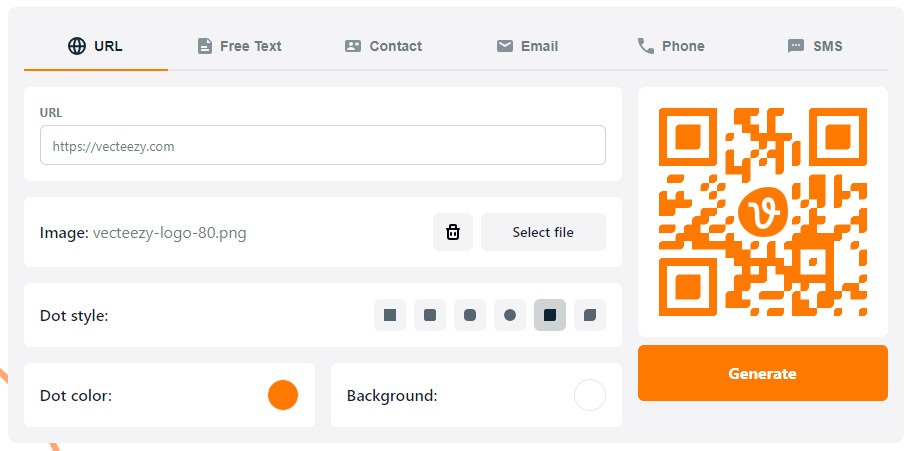
Color Customization allows you to change your QR code from standard black to match your brand colors. You can adjust both the dot and background colors. Dark patterns on light backgrounds work best, and you need to ensure that there’s enough contrast for it to be scanned easily.
Logo Integration adds a professional touch by placing your company logo or icon in the center of the QR code.
You can also customize the dot style. There are six options to choose from, and you can click each one to preview the result.
Step 4: Generate
When you’re ready, click the “generate” button. Next, you’ll see the option to choose a size. Pick the one that is closest to your intended use.

Now, the Vecteezy Editor will open with your custom QR code on the canvas.
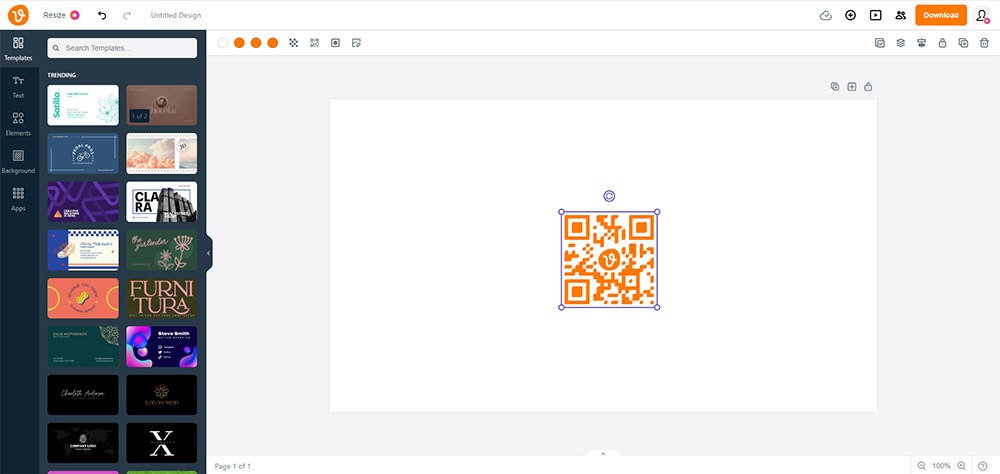
You can use the Editor to design the rest of your business card, flyer, or whatever you’re using the QR code on. Or, if you just want the QR code itself, download it on a plain background.
Step 5: Download Your QR Code
Click the orange button in the header to download your QR code. You can choose from PNG, JPG, or PDF format. We recommend PNG for web-based usage or PDF for use in print.
Best Practices for QR Code Design and Usage
Maintain Adequate Contrast: Your QR code needs strong contrast between the pattern and background for reliable scanning. The classic black-on-white combination works best, but if you’re using brand colors, ensure the contrast ratio is at least 3:1. Light patterns on dark backgrounds can work but generally perform less reliably than dark-on-light designs.
Leave a Quiet Zone Around the Code: QR codes require a clear border called a “quiet zone” around all four sides. This empty margin helps scanners identify where the code begins and ends. Most generators, including Vecteezy’s, automatically include appropriate quiet space, but be careful not to crop it away when placing your code in designs.
Size Appropriately for Scanning Distance: Consider the context in which your QR code will be scanned. A code on a business card held in someone’s hand can be smaller than a code on a poster.
Test Before Mass Production: Always test your QR code before committing to print runs. Print a sample at the exact size and material you’ll use for final production, then scan it with multiple devices under various lighting conditions.
Include a Call-to-Action: Don’t assume people automatically know what to do with your QR code. Adding text like “Scan to view our menu,” “Scan for special offers,” or “Scan to view our portfolio” increases engagement significantly.
Ensure Mobile-Friendly Destinations: Since QR codes are scanned with mobile devices, your destination content should be optimized for mobile. If your QR code links to a website with tiny text, difficult navigation, or slow loading times on mobile devices, you’ve wasted the convenience factor.
Try Our Free QR Code Generator Today
Creating QR codes doesn’t require expensive software or technical expertise. Vecteezy’s free QR code generator puts powerful customization options at your fingertips while maintaining simplicity. Create your first QR code today.
Featured image by Ahmad Juliyanto.